
User Guide – NSPC
This User Guide was developed to cover custom development created specifically for NSPC. Depending on your role, project, or permissions, some of the user guides may apply to you.
QA Scorecard Process
The steps below outline the process to create and review QA scorecards in Acuity.
Please note: all data shown in these screenshots contain test data only.
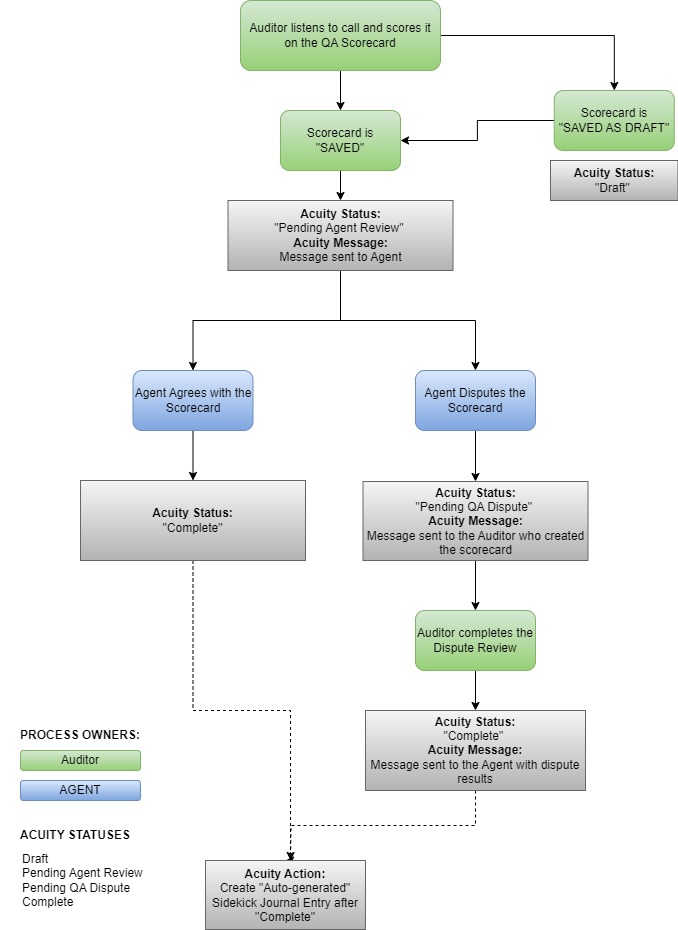
QA Scorecard Statuses & Process Flow
Scorecard statues:
- In Draft (scorecards that are In Draft are not visible to agents)
- Pending Agent Review
- Pending QA Dispute
- Complete
Create QA Scorecard (for Supervisors & QA)
The guide below will provide the steps required for Supervisors or QA staff to create QA Scorecards in Acuity.
1. Click on the Main Menu

2. Click on Monitor
Click on Monitor and a new browser window will open.

3. Complete the Agent Monitoring Screen
- Project: select NSPC
- Evaluation Form: select NSPC QA Scorecard v2 or NSPC QA Scorecard (Accedo) v2
- Agent: select agent name
- Call ID: enter the call if applicable
- Call Date: enter the call date and time
- Click Evaluate

4. Complete the QA Scorecard monitor form

5. Click on Save Monitor
When the scorecard has been filled out, click the Save Monitor button. Or, if the scorecard has been started but not completed, a draft can be saved.
Draft notes:
- Click on Save as Draft to complete the monitor later.
- The form status will be “In Draft” to indicate that it has not been created. The status will be visible in the QA Scorecards and Audit Reports.
- Monitors that are “In Draft” are not visible to the agent.
Next steps for saved scorecards:
- Once the scorecard has been saved, the status will change to “Pending Agent Review”.
- The agent will receive an email via Acuity Messages to inform them that a scorecard has been created for them to review. The agent will have the option to Agree or Dispute the scorecard results.

Review of QA Scorecards (for Agents)
After a QA Scorecard has been created in Acuity. The agent has the opportunity to review the results of the scorecard evaluation.
Below are the steps to be taken by the agent after the scorecard is created.
1. Click on Message Center
Unread messages are visible in the Message panel in the Dashboard or next to the envelope icon. To view the messages, click on the Message Center menu.

2. Click the message to open
All unread messages will be in bold. Click on the message to open.

3. Hyperlink to QA Scorecard
The message will indicate that a scorecard was created that needs to be reviewed. Click on the hyperlink and the scorecard will open in a new browser window.
NOTE: If the scorecard is not reviewed within a two-week period, it will be marked as “auto-complete” due to no response. Once it is marked as “COMPLETE”, it cannot be undone.

4. Review of the QA Scorecard
The Agent Review section of the scorecard can be found at the bottom of the form. The agent will complete this section and click the Save Monitor button.
The agent has two options:
- Agree with the assessment.
- Dispute the assessment.
NOTE: once this step is complete, it cannot be undone.
Next steps after Agent Review:
- Agreed to assessment – The status of the scorecard will be “Complete”.
- Dispute the assessment – Once this step is complete, the status of the scorecard will be “Pending QA Dispute” and the auditor will be notified via Acuity Messages that the scorecard is being disputed. Once the dispute is reviewed, the agent will receive a notification via Acuity Messages that the review is complete.

QA Dispute Review (for QA & Supervisors)
When an agent disputes a QA scorecard, the person who entered the scorecard will receive an Acuity Message indicating the dispute. The QA Supervisor will be BCC’d on all QA Dispute Review messages.
Below are the steps to be taken by the scorecard creator to complete the QA Dispute Review.
1. Click on Message Center
Unread messages are visible in the Message panel in the Dashboard or next to the envelope icon. To view the messages, click on the Message Center menu.

2. Click the message to open
All unread messages will be in bold. Click on the message to open.

3. Hyperlink to QA Scorecard
The message will indicate that a scorecard was disputed and needs to be reviewed. Click on the hyperlink and the scorecard will open in a new browser window.
NOTE: If the dispute is not reviewed within a two-week period, it will be marked as “auto-complete” due to no response. Once it is marked as “COMPLETE”, it cannot be undone.

4. Review the dispute
The Dispute Review section of the scorecard can be found a the bottom of the form. After the dispute has been reviewed, the scorecard may or may not be updated. The reviewer will input the dispute results in the space provided and then click the Update button.
NOTE: once this step is complete, it cannot be undone.
Next steps after Dispute Review:
- The scorecard status will be “Complete”.
- Once the dispute has been completed, the agent will receive notification via Acuity Messages that the Dispute Review is complete.

5. Example of the Acuity Message to indicate the dispute resolution
Below is an example of the Acuity Message that the agent will receive to indicate that the dispute has been reviewed. They can click on the hyperlink to view the Dispute Review Results in the QA Scorecard.

QA Scorecard Reports
There are several reports available to assist in the management of the QA Scorecards in Acuity.
1. Click on the Reports menu

2. QA Scorecard – Pending Review Report
In the dropdown menu, select the QA Scorecard – Pending Review report.
- The report can be configured based on the filter panel on the left. Depending on the user, some of the filters may be preset.
- To run the report click the Submit button.
- This report bypasses the Score View (or date range) as it will display any scorecard that is in a “pending” status.
- All users have access to this report however, agents will not see any scorecard that is in a “Draft” status.

3. QA Scorecard – Pending Review Report Display Results

4. Select QA Scorecard – Log Report
In the dropdown menu, select the QA Scorecard – Log report.
- The report can be configured based on the filter panel on the left. Depending on the user, some of the filters may be preset.
- To run the report click the Submit button.
- All users have access to this report however, agents will not see any scorecard that is in a “Draft” status.
- This report is the same as the QA Scorecard – Pending Review Report with the following exceptions:
- This report DOES NOT bypass the Score View (or date range).
- This report includes scorecards that are in a “COMPLETE” status.

5. QA Scorecard – Log Report Display Results

6. QA Scorecard – No-Response Auto-Completes Report
In the dropdown menu, select the QA Scorecard – No-Response Auto-Completes report.
- This report will display any scorecards that have been completed automatically due to no response from the reviewer. If a scorecard is in a “pending” status for more than two weeks, then it will be marked as “no response” and automatically completed.
- The report can be configured based on the filter panel on the left. Depending on the user, some of the filters may be preset.
- To run the report click the Submit button.
- This report is only visible to everyone except for Agents.
NOTE: If the scorecard is not reviewed within a two-week period, it will be marked as “auto-complete” due to no response. Once it is marked as “COMPLETE”, it cannot be undone.

Automated Sidekick Journal Entries from QA Scorecards
When the status of the scorecard changes to “Complete” an automated Sidekick Journal Entry will be created. The process of creating these automated Journal Entries runs hourly.
1. View Agent’s Journal Entry records in Sidekick
Double-click the + sign by the Agent’s name

2. Click on the pencil to view the Journal Entry

3. Example of an automated Journal Entry from a QA Scorecard
Below is an example of an automated Journal Entry. The scorecard can by be opened by clicking on the monitor ID number hyperlink.
