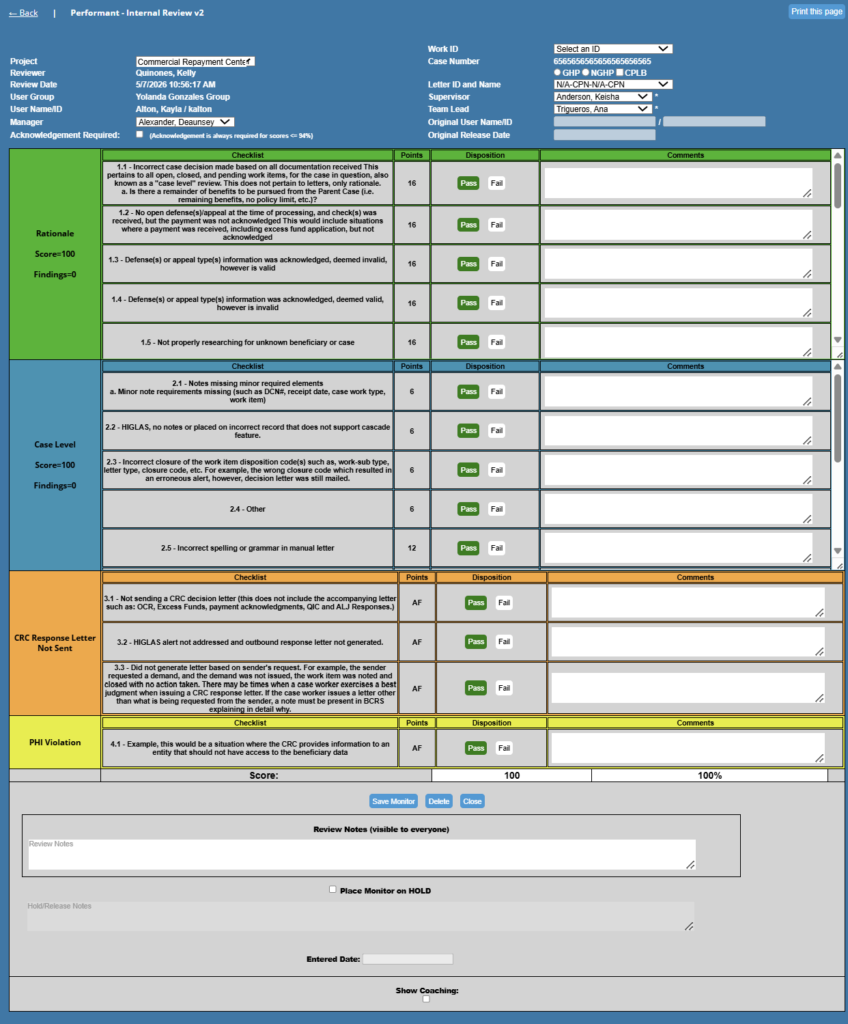
Acuity User Guide – Performant
Reports and QA Workflow
Reports - Case Worker
Monitor Grid (Case Worker)
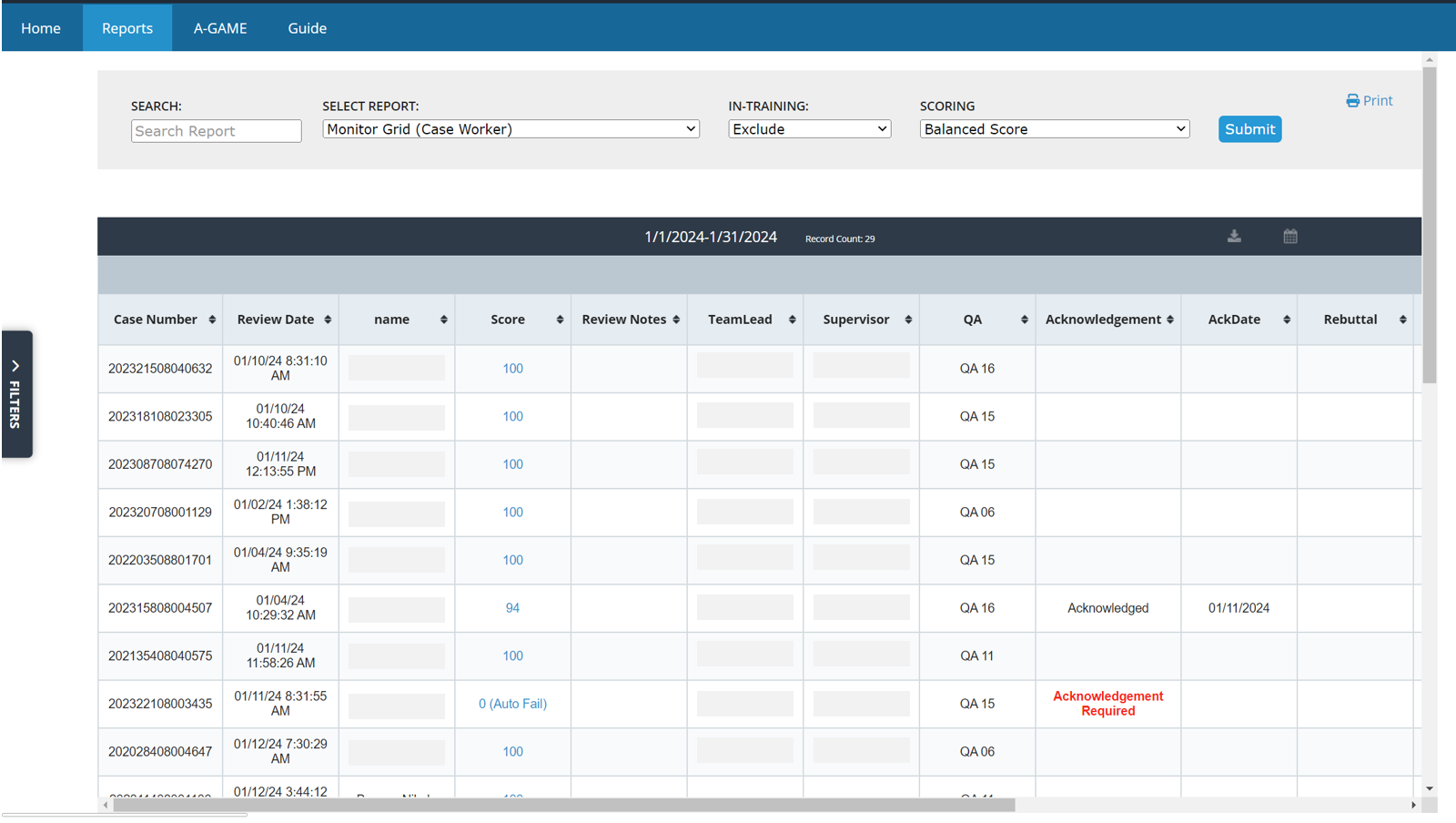
The Monitor Grid (Case Worker) report provides a complete list and comprehensive overview of completed audits within the specified parameters.
Information returned:
- Case Number
- Review Date and Time
- Case Worker
- Score
- Notes entered into the audit
- Team Lead and Supervisor
- QA – Quality auditor
- Acknowledgement and Acknowledgement Date
- Rebuttal Information
Audits can be accessed directly through this report by clicking the Score hyperlink.
Acknowledgements are also handled directly through this report in the Acknowledgement column.
Production Report
Production Report
The Production Report provides production data for the Case Worker within the specified parameters to calculate a Production Work Rate percentage. The production data is broken down by work type, productive states, non-productive states, and is compared to paid work hours. This information is provided at daily intervals, as well as a monthly total.
Daily Work Hours
The Daily Work Hours report displays worked hours with data populated from Performant’s timekeeping system. This report also allows Team Leads and Supervisors to add or remove time from any of the work hours states, along with adding comments for the update.
Reports - Quality Assurance
Processing Grid QA
The Processing Grid QA report provides a complete list and comprehensive overview of completed audits within the specified parameters.
Information returned:
- QA – Quality auditor
- Case Number
- Review Date and Time
- Case Worker
- Score
- Notes entered into the audit
- Status of the audit
- Team Lead
- Rebuttal Information
- Acknowledgement and Acknowledgement Date
Audits can be accessed directly through this report by clicking the Score hyperlink.
Tag Report
The Tag Report provides a list and overview of tags that have been entered into any completed audits within the specified parameters.
Information returned:
- Monitor ID
- Review Date and Time
- Case Number
- Case Worker
- Comments – comments about the tag/finding
- Theme – Tag Category (Case Work, Case Level, Notes, etc….)
- Team Lead
- Supervisor
QA Review
The QA Review report provides an overview of active case workers and a summary of available and completed audits for each within the specified parameters.
- Month Cases – total cases for the entire month
- Month Audits – completed audits for the entire month
- Available Cases – available cases to be worked within the QA review date period
- 5 Day Audits – completed audits within the last five days
QA Review also serves as a queue for the Quality Assurance team to work out of to ensure random selection of audits that are equally distributed across the entire QA team.
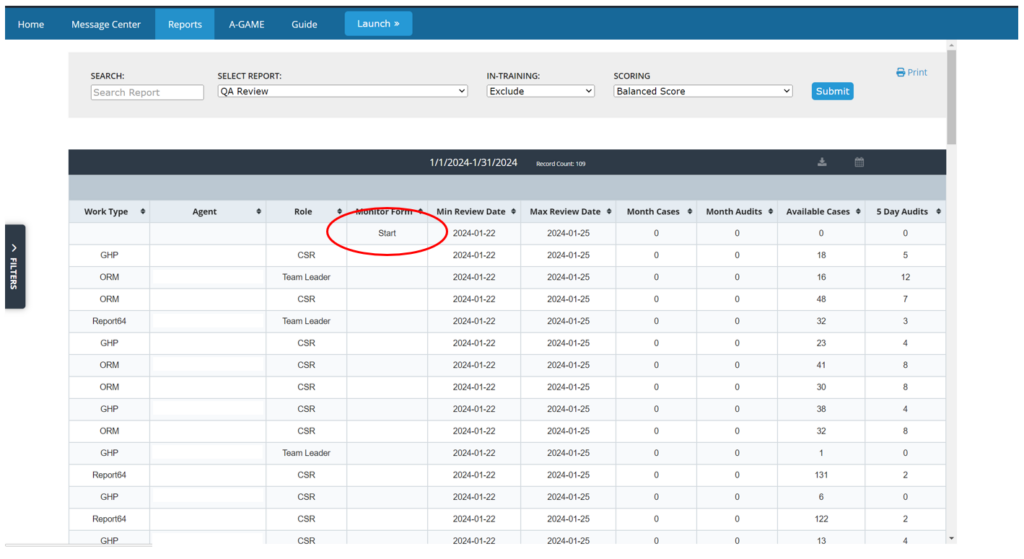
- QA users will click “Start” in the Monitor Form column to select from the audit queue
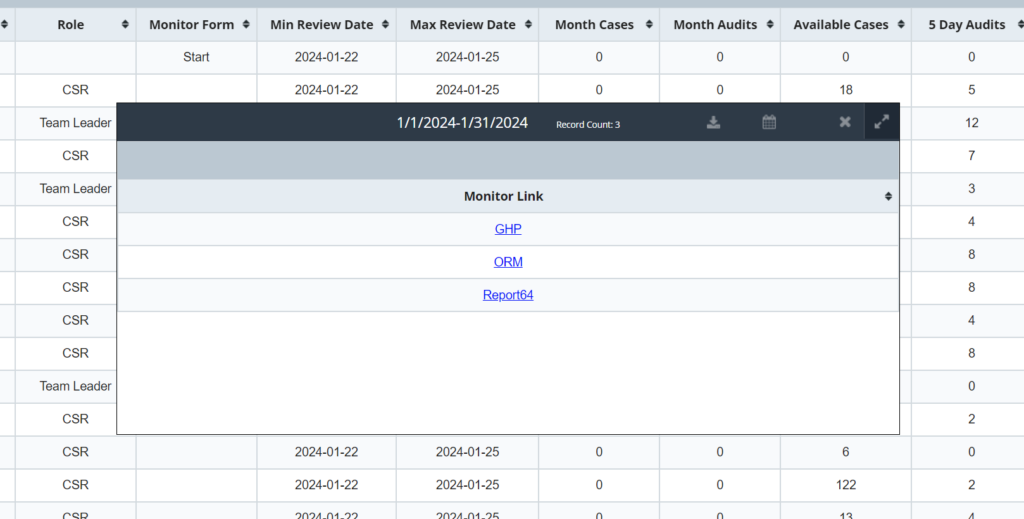
- QA users will select one of the three work type options to start an audit
- Work Types:
- GHP
- ORM
- Work Types:
- Report64
- After selecting one of the three work types, QA users will be navigated to the audit form of the work type they selected to complete and submit. This form will be automatically populated with the corresponding Work ID and Case Number for the QA to reference.
- Once the audit has been completed the user will go back to step 1.
Acknowledgements Outstanding
The Acknowledgements Outstanding report provides a list of all audits that are missing a required acknowledgement, and whether the acknowledgement request has been sent.
Information returned:
- Case Number
- Review Date
- Case Worker
- Score
- Team Lead
- Acknowledgement – Acknowledgement Status
QA Scorecard Score Summary by Evaluator
The QA Scorecard Score Summary by Evaluator report provides an overall summary of average scores and total audits completed by each QA auditor within the specified parameters.
Information returned:
- Project – Performant
- Form Name – Quality audit form name
- Evaluator – QA that completed the audits
- Average Score
- Total QA Scorecards
Production Report
The Production Report provides production data for teams or individuals within the specified parameters to calculate a Production Work Rate percentage. The production data is broken by work type, productive states, non-productive states, and is compared to paid work hours. This information is provided at daily intervals, as well as a monthly total.
QA Production Report
The QA Production Report provides production data for QA roles within the specified parameters to calculate a Production Rate percentage. Production data includes Total Audits completed and time spent on each type of audit completed. This data is then compared against the corresponding paid work hours. Information is provided at daily intervals, as well as a monthly total.
Daily Work Hours
The Daily Work Hours report displays worked hours with data populated from Performant’s timekeeping system. This report also allows Team Leads and Supervisors to add or remove time from any of the work hours states, along with adding comments for the update.
User Profile Report
The User Profile Report provides a comprehensive list of active profiles in Acuity within the specified parameters. Only profiles that the logged in user has access to view will be displayed.
Information returned:
- ID – user ID
- First – First name
- Last – Last name
- Acuity Role
- User Status
- Profile Add Date
- Team Name
- Group Name
- Location
Reports - Management
Attrition Report
The Attrition Report provides attrition data for the specified parameters. The data include an attrition percentage, along with a break down of user headcount for the specified date range.
CPLB Findings/Coaching
The CPLB Findings/Coaching report provides a comprehensive overview of all CPLB audits that had findings, along with the accompanying coaching comments for each finding within the specified parameters. Rebuttal comments as well as agent acknowledgment are also included in this report.
Information included:
- Monitor ID
- Record Type
- Case Number
- Work ID
- Review Date
- Case Worker
- Score
- Finding and Finding Comments
- Coaching Comments and Timestamp
- Review Notes
- Team Lead and Supervisor
- QA – Auditor of the CPLB Form
- Rebuttal and Rebuttal Response
- Acknowledgement and Acknowledgement Date
CPLB Rebuttals/Responses
The CPLB Rebuttals/Responses report provides a comprehensive overview of all CPLB audits that had a rebuttal submitted within the specified parameters. This report provides the date and time each rebuttal was submitted, along with the rebuttal response.
Information included:
- Project
- QA
- Monitor ID
- Case Number
- Review Date
- Rebuttal Date and Rebuttal Response Date
- Rebuttal Comments and who submitted the rebuttal
- Rebuttal Response and the QA that responded
- Case Worker
- Score
- QA and Review Notes
- Status
- Team Lead
- Acknowledgement and Acknowledgement Date
CPLB Tracker
The CPLB Tracker report provides a comprehensive overview of all completed CPLB audits within the specified parameters. This report will provide the review dates, case numbers, work IDs, case worker and reviewer names, along with an overall score as well as a score by question. Additionally, rebuttal and coaching information for each audit is included.
Information included:
- Project
- QA Form
- Monitor ID
- Review Date and Time
- Case Number and Work ID
- Case Worker ID and Name
- Reviewer
- Total Score
- Scores and comments for each question
- Rebuttal and Rebuttal response information
CPLB Monitor Counts - Static - Listing
The CPLB Monitor Counts – Static – Listing report provides a count of completed audits with the specified parameters, broken down by Case Worker and Work Type. This report will provide a total count of audits completed for each case worker, as well as the overall score of the audits for GHP, NGHP, and both combined. Additionally, counts of findings are included.
Information included:
- Case Worker
- Total Reviewed – Total Audits
- Holds – Audits on hold
- Completed Audits
- GHP – count of GHP audits
- NGHP – count of NGHP audits
- GHP Accuracy – average score of GHP audits
- NGHP Accuracy – average score of NGHP audits
- GHP Beneficiary, GHP Incorrect Work Type, GHP Incorrect CaseID – count of each type of finding
- NGHP Beneficiary, NGHP Incorrect Work Type, NGHP Incorrect CaseID – count of each type of finding
CPLB Processing Grid QA
The CPLB Processing Grid QA report provides a complete list and comprehensive overview of completed CPLB audits within the specified parameters.
Information returned:
- QA – Quality auditor
- Monitor ID
- Case Number
- Review Date and Time
- Case Worker
- Score
- Notes entered into the audit
- Status of the audit
- Team Lead
- Rebuttal Information
- Acknowledgement and Acknowledgement Date
Audits can be accessed directly through this report by clicking the Score hyperlink.
CPLB QA Review
The CPLB QA Review report provides an overview of active case workers and a summary of available and completed CPLB audits for each within the specified parameters.
- Month Cases – total cases for the entire month
- Month Audits – completed audits for the entire month
- Available Cases – available cases to be worked within the QA review date period
- 5 Day Audits – completed audits within the last five days
CPLB QA Review also serves as a queue for the Quality Assurance team to work from to ensure random selection of audits that are equally distributed across the entire QA team.
- QA users will click “Start” in the Monitor Form column to select from the audit queue
- QA users will select one of the two work type options to start an audit
- Work Types:
- CPLB_GHP
- CPLB_ORM
- After selecting one of the three work types, QA users will be navigated to the audit form of the work type they selected to complete and submit. This form will be automatically populated with the corresponding Work ID and Case Number for the QA to reference.
- Once the audit has been completed the user will go back to step 1.
- Work Types:
Processing Grid QA
The Processing Grid QA report provides a complete list and comprehensive overview of completed audits within the specified parameters.
Information returned:
- QA – Quality auditor
- Case Number
- Review Date and Time
- Case Worker
- Score
- Notes entered into the audit
- Status of the audit
- Team Lead
- Rebuttal Information
- Acknowledgement and Acknowledgement Date
Audits can be accessed directly through this report by clicking the Score hyperlink.
Rebuttals/Responses
The Rebuttals/Responses report provides a comprehensive overview of all audits that had a rebuttal submitted within the specified parameters. This report provides the date and time each rebuttal was submitted, along with the reasons and rebuttal responses for each level of rebuttal.
Information included:
- QA
- Monitor ID
- Case Number
- Review Date
- Rebuttal Date and Rebuttal Response Date
- Rebuttal Comments and who submitted the rebuttals
- Rebuttal Responses and the QAs that responded
- Case Worker
- Score
- QA and Review Notes
- Status
- Team Lead
- Acknowledgement and Acknowledgement Date
Findings/Coaching
The Findings/Coaching report provides a comprehensive overview of all audits that had findings, along with the accompanying coaching comments for each finding within the specified parameters. Rebuttal comments as well as agent acknowledgment are also included in this report.
Information included:
- Case Number
- Review Date
- Case Worker
- Score
- Finding and Finding Comments
- Coaching Comments and Timestamp
- Review Notes
- Team Lead and Supervisor
- QA – Auditor
- Rebuttal and Rebuttal Response
- Acknowledgement and Acknowledgement Date
Monitor Counts - Hierarchy Rollup
The Monitor Counts – Hierarchy Rollup report provides an overall count of completed audits within the specified parameters, broken down by finding and work type. This report will provide a total count of audits completed by work type, overall score for GHP and NGHP, and total count of each finding type
Information included:
- Project
- Total Reviewed – Total Audits
- GHP – count of GHP audits
- NGHP – count of NGHP audits
- GHP Accuracy – average score of GHP audits
- NGHP Accuracy – average score of NGHP audits
- Case Work, Notes, Case Level, Inappropriate Letter, Task Not Completed, Outgoing Correspondence, Case Status and Claims, Claim Summary, HIGLAS Balance – count of each type of finding
Monitor Counts by Mgr
The Monitor Counts by Mgr report provides an overall count of completed audits within the specified parameters, broken down by finding type and manager. This report will provide a total count of audits completed by work type, overall score for GHP and NGHP, and total count of each finding type
Information included:
- Project
- Manager
- Total Reviewed – Total Audits
- GHP – count of GHP audits
- NGHP – count of NGHP audits
- GHP Accuracy – average score of GHP audits
- NGHP Accuracy – average score of NGHP audits
- Case Work, Notes, Case Level, Inappropriate Letter, Task Not Completed, Outgoing Correspondence, Case Status and Claims, Claim Summary, HIGLAS Balance – count of each type of finding
Monitor Counts - Static - Listing
The Monitor Counts – Static – Listing report provides a count of completed audits with the specified parameters, broken down by Case Worker and Work Type. This report will provide a total count of audits completed for each case worker, as well as the overall score of the audits for GHP, NGHP, and both combined. Additionally, counts of findings are included.
Information included:
- Case Worker
- Total Reviewed – Total Audits
- Completed Audits
- GHP – count of GHP audits
- NGHP – count of NGHP audits
- GHP Accuracy – average score of GHP audits
- NGHP Accuracy – average score of NGHP audits
- PHI PII, Case Work, Notes, Case Level, Inappropriate Letter, Task Not Completed, Outgoing Correspondence, Amounts Balances, Inaccurate Dates, Case Status and Claims, Claim Summary, HIGLAS Balance – count of each finding type
Monitor Counts - Static - Summary
The Monitor Counts – Static – Summary report provides an overall count of completed audits within the specified parameters, broken down by finding type and work type. This report will provide a total count of audits completed by work type, overall score for GHP and NGHP, and total count of each finding type
Information included:
- Total Reviewed – Total Audits
- GHP – count of GHP audits
- NGHP – count of NGHP audits
- GHP Accuracy – average score of GHP audits
- NGHP Accuracy – average score of NGHP audits
- Total Accuracy – Combined average score
- Case Work, Notes, Case Level, Inappropriate Letter, Task Not Completed, Outgoing Correspondence, Case Status and Claims, Claim Summary, HIGLAS Balance – count of each type of finding
Tag Report
The Tag Report provides a list and overview of tags that have been entered into any completed audits within the specified parameters.
Information returned:
- Monitor ID
- Review Date and Time
- Case Number
- Case Worker
- Comments – comments about the tag/finding
- Theme – Tag Category (Case Work, Case Level, Notes, etc….)
- Team Lead
- Supervisor
Acknowledgements Outstanding
The Acknowledgements Outstanding report provides a list of all audits that are missing a required acknowledgement, and whether the acknowledgement request has been sent.
Information returned:
- Case Number
- Review Date
- Case Worker
- Score
- Team Lead
- Acknowledgement – Acknowledgement Status
QA Deletes
The QA Deletes report provides a list of all deleted audits within the specified parameters. This report will also provide who deleted the audit and the date of deletion.
Information included:
- Monitor ID
- Review Date
- Case Number and Work ID
- Case Worker
- QA Reviewer
- Deleted By Name
- Deleted Date
QA Review
The QA Review report provides an overview of active case workers and a summary of available and completed audits for each within the specified parameters.
- Month Cases – total cases for the entire month
- Month Audits – completed audits for the entire month
- Available Cases – available cases to be worked within the QA review date period
- 5 Day Audits – completed audits within the last five days
QA Review also serves as a queue for the Quality Assurance team to work out of to ensure random selection of audits that are equally distributed across the entire QA team.
- QA users will click “Start” in the Monitor Form column to select from the audit queue
- QA users will select one of the three work type options to start an audit
- Work Types:
- GHP
- ORM
- Work Types:
- Report64
- After selecting one of the three work types, QA users will be navigated to the audit form of the work type they selected to complete and submit. This form will be automatically populated with the corresponding Work ID and Case Number for the QA to reference.
- Once the audit has been completed the user will go back to step 1.
QA Scorecard Score Summary
The QA Scorecard Score Summary report provides an overall average score and total count of scorecards completed within the specified parameters.
Information included:
- Project/Group/Team/Case Worker
- Average Score
- Total QA Scorecards
QA Scorecard Score Summary by Evaluator
The QA Scorecard Score Summary by Evaluator report provides an overall summary of average scores and total audits completed by each QA auditor within the specified parameters.
Information returned:
- Project – Performant
- Form Name – Quality audit form name
- Evaluator – QA that completed the audits
- Average Score
- Total QA Scorecards
Holds Outstanding
The Holds Outstanding report provides a list of all audits that are currently in a status of On Hold. Audits can be accessed directly from this report. General information like Case Number, Score, Review Date etc. is also provided.
Information included:
- QA
- Case Number
- Review Date
- Case Worker
- Score
- Notes
- Status
- Team Lead
- Rebuttal Information
- Acknowledgement and Acknowledgement Date
Unassigned BCRS IDs from Work Type Import
The Unassigned BCRS IDs from Work Type Import report provides a list of all BCRS IDs that were not assigned to a profile in Acuity. This report uses the daily work type imports to determine BCRS IDs that were included in the data files but were not assigned to a profile in Acuity.
Production Report
The Production Report provides production data for teams or individuals within the specified parameters to calculate a Production Work Rate percentage. The production data is broken by work type, productive states, non-productive states, and is compared to paid work hours. This information is provided at daily intervals, as well as a monthly total.
QA Audit Length Report
The QA Audit Length Report provides an overview of total audits completed within the specified parameters, along with the average length of time the audits took to complete. This is also broken down by work type.
QA Daily Work Hours
The QA Daily Work Hours report displays worked hours for QA roles with data populated from Performant’s timekeeping system. This report also allows Managers to add or remove time from any of the work hours states, along with adding comments for the update.
QA Exclusion List
The QA Exclusion List report provides a list of case workers who should be excluded from receiving audits through the QA Review audit queue. This report provides a dynamic checkbox field that allows managers to include or exclude case workers from receiving QA audits.
QA Hold History
The QA Hold History report provides a list of all audits that have been placed on hold at any time during the selected date range. This report provides hold reasons, as well as the dates for placing the audit on hold and taking the audit off of hold.
Information included:
- Monitor ID
- Caseworker ID
- QA ID
- Case Number and Work ID
- Review Date
- Hold Reason
- On and Off Hold Dates
QA Monitor Counts by Mgr
The QA Monitor Counts by Mgr report provides an overall count of completed audits within the specified parameters, broken down by finding type and manager. This report will provide a total count of audits completed by work type, overall score for GHP and NGHP, and total count of each finding type
Information included:
- Project
- Manager
- Total Reviewed – Total Audits
- GHP – count of GHP audits
- NGHP – count of NGHP audits
- GHP Accuracy – average score of GHP audits
- NGHP Accuracy – average score of NGHP audits
- PHI, Case Work, Notes, Case Level, Inappropriate Letter, Task Not Completed, Outgoing Correspondence, Case Status and Claims, Claim Summary, HIGLAS Balance – count of each type of finding
QA No Audit Report
The QA No Audit Report provides a list of users that do not have any audits for the selected parameters. The report also displays the reason for no audits and the case worker’s primary work type.
Information included:
- Case worker ID
- First and Last name
- Role
- Team Name
- Reason
- Primary Work Type
QA Production Report
QA Production Report
The QA Production Report provides production data for QA roles within the specified parameters to calculate a Production Rate percentage. Production data includes Total Audits completed and time spent on each type of audit completed. This data is then compared against the corresponding paid work hours. Information is provided at daily intervals, as well as a monthly total.
QA Work Type Factor
The QA Work Type Factor report provides of list of work types and the QA Factor applied to each. This report also allows managers to exclude specific work types, and adjust the factor of each work type.
Information included:
- Work Type ID
- Work Type
- QA Exclusion Flag
- QA Factor
Daily Work Hours
The Daily Work Hours report displays worked hours with data populated from Performant’s timekeeping system. This report also allows Team Leads and Supervisors to add or remove time from any of the work hours states, along with adding comments for the update.
User Guide - Case Worker
Audit Review and Management
The Monitor Grid (Case Worker) report provides Case Workers with a complete list of completed audits during the selected date range, as well as any audits that require acknowledgement from the Case Worker. Audits that require acknowledgement display a red “Acknowledgement Required” flag in the report. Case Workers should also receive an email notification with the details of the required acknowledgement.
Clicking on the Score of the audit will open up the audit for the Case Worker to review and acknowledge the score.
Additionally, Case Workers have the ability to see if any of the audits have had a rebuttal submitted, as well as the outcome of that rebuttal.
User Guide - Team Lead and Supervisor
Audit Review and Management
Compilation of Audits into the Processing Grid RELEASED THIS WEEK (TL/Sup) Report or Processing Grid – Month (TL/Sup) Report
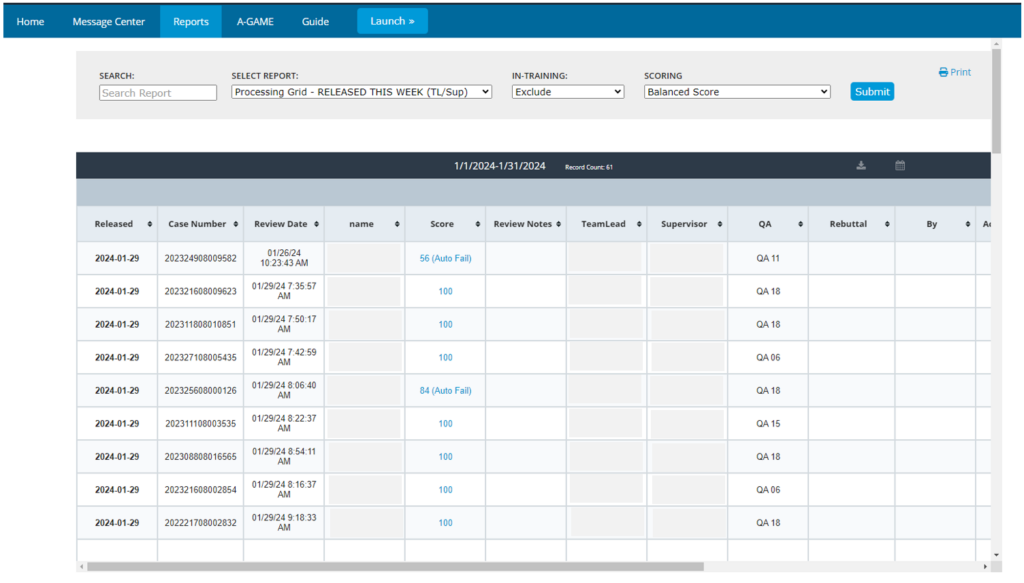
Once audits are completed, the results are compiled into centralized reports known as the Processing Grid – RELEASED THIS WEEK (TL/Sup) or Processing Grid – Month (TL/Sup). These reports aggregate all of the audits done by the QA team over the specified period, offering a complete list for review.
Accessing the Report by Team Leads and Supervisors
Team Leads and Supervisors can access the Processing Grid – RELEASED THIS WEEK (TL/Sup) or Processing Grid – Month (TL/Sup) report through the Reports tab to view the list of completed audits.
Review of Completed Audits
Team Leads and Supervisors can open and review the completed audits detailed in this report by clicking on the Score of each audit. This review process may involve examining the findings, understanding the implications of the audits, and determining if the audited work meets the required standards and guidelines.
Submission of Rebuttals (If Necessary)
If, upon review, Team Leads or Supervisors find discrepancies or disagree with the findings of the audit, they have the option to submit rebuttals. Rebuttals can be submitted inside of the audit form after clicking the Score to open it.
Team Leads are responsible for the 1st level rebuttals, which are completed through the Rebuttal field at the bottom of the audit form. Team Leads will be required to enter their notes as to why they disagree with the findings. Once filled out, clicking Submit Rebuttal will forward the rebuttal to the QA team for further review.
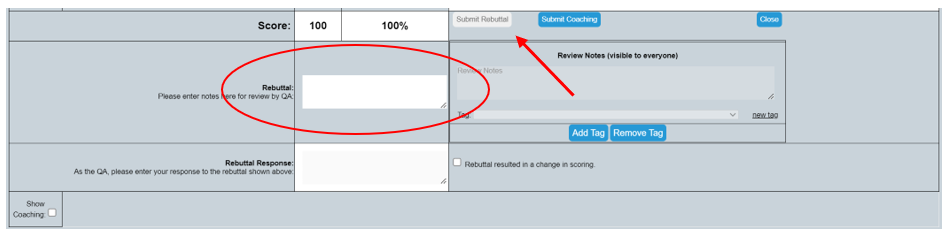
Supervisors are responsible for the 2nd level rebuttals, which are also completed through the audit form. After a 1st level rebuttal has been submitted and responded to, an additional field will appear for a 2nd Level Rebuttal. Supervisors will be required to enter their notes as to why they disagree with the 1st level rebuttal response and original findings. Once the 2nd level rebuttal notes have been filled out, clicking Submit Rebuttal – level 2 will forward the 2nd level rebuttal back to the QA team for further review.

Once a rebuttal response has been received from the QA team, the responses are displayed in the Processing Grid – RELEASED THIS WEEK (TL/Sup) and the Processing Grid – Month (TL/Sup) report. Team Leads and Supervisors will also receive an email notification informing them a response has been received.
Sending Acknowledgement Requests to Case Workers
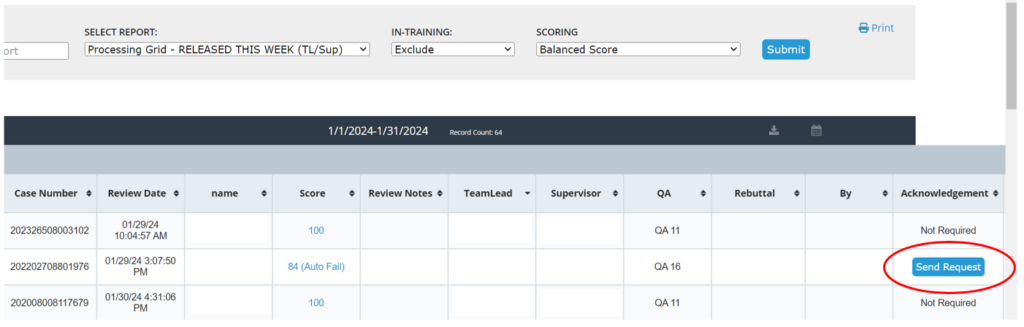
After reviewing the audits (and submitting any necessary rebuttals), Team Leads and Supervisors can send acknowledgement requests to Case Workers by clicking the Send Request button in the Acknowledgement column.
Finalization and Follow-Up
The workflow concludes with the finalization of the audit review process, which may include the resolution of any submitted rebuttals and confirmation that Case Workers have acknowledged and, if necessary, acted upon the audit findings.
User Guide - Quality Assurance and Management
Starting and Completing an Audit
Getting Started
Access the QA Review Report:
- Start by accessing the QA Review report. This is the primary tool for initiating the audit process.
Initiate the Audit:
- Click the Start button on the QA Review report interface. This action triggers the process and prepares the system to assign cases for auditing.
Selecting Line of Business
Choose Your Line of Business:
- After initiating the audit, user will be prompted to select the line of business.
- Click on the appropriate line of business to be audited.
Case Assignment:
- Upon selection, the system will automatically assign a case from the queue, relevant to the chosen line of business.
Conducting the Audit
Review Assigned Case:
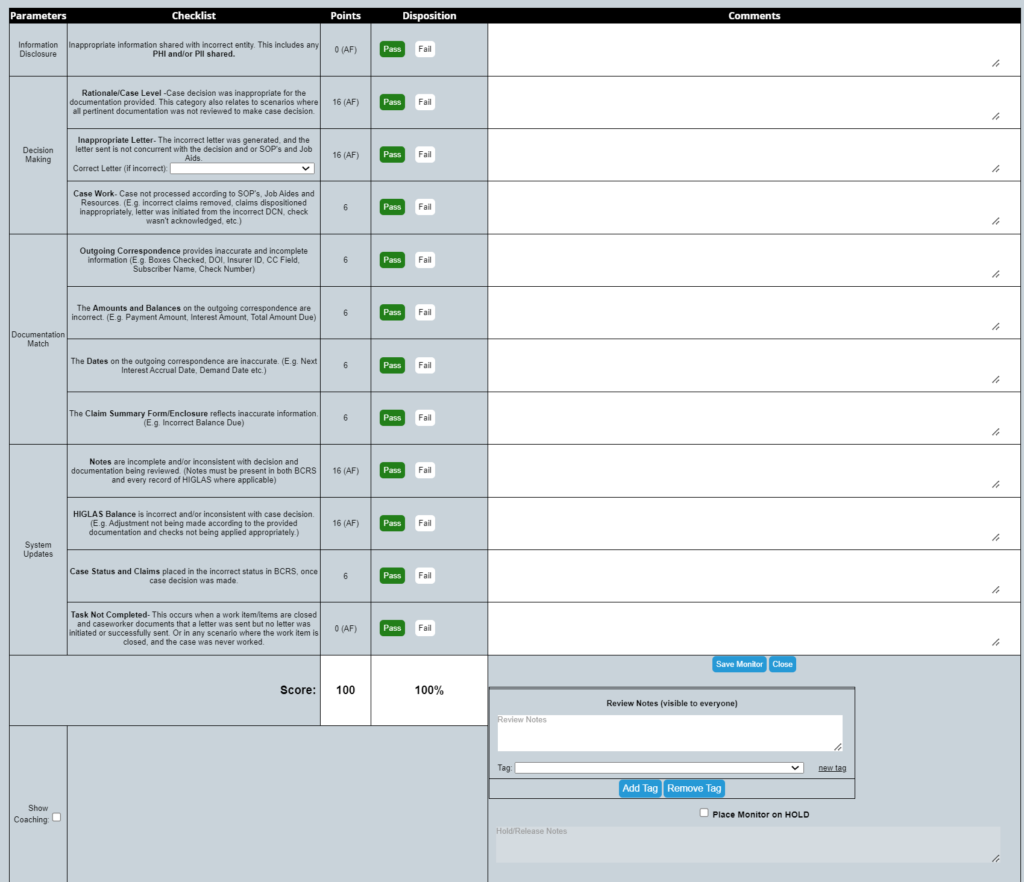
- The audit form will automatically populate with the identifying information for the assigned case.
- Carefully review all the information presented in the audit form. This may include case details, customer information, previous interactions, and any relevant notes or flags.

Complete the Audit:
- Fill out the audit form based on the QA review. Ensure to address all required fields and provide accurate evaluations.
- If additional information or clarification is needed, refer to the corresponding guidelines or reach out to a supervisor.
Submit the Audit:
- Once the audit form is completed, review the inputs for accuracy.
- Click the Submit button to finalize the audit process. The submission will be recorded and reviewed as part of the QA process.
QA Rebuttal Process
Receiving Rebuttals
- The QA Team will receive rebuttals via email notifications that have been submitted by Team Leads, Supervisors, and Managers.
- The notifications will contain identifying information about the case as well as a link to the audit.
Initial Review
- QA can review the rebuttal that was submitted and provide a response in the Rebuttal Response
- If the QA agrees with the rebuttal and it results in a change of score, QA should check the box Rebuttal resulted in a change in scoring.
- Click Submit Rebuttal Response to submit the response.
2nd Level Rebuttal
- If a supervisor has submitted a 2nd level rebuttal it will be forwarded to the QA supervisor for additional review.
- The 2nd level rebuttal details will be in the Rebuttal – level 2
- The QA supervisor can provide a response in the Rebuttal Response – level 2
- Click Submit Rebuttal Response – level 2 to submit the response.
3rd Level Rebuttal
- If a manager has submitted a 3rd level rebuttal it will be forwarded to the QA manager for final review.
- The 3rd level rebuttal details will be contained in the Rebuttal – level 3
- The QA manager can provide a final response in the Rebuttal Response – level 3
- Click Submit Rebuttal Response – level 3 to submit the response.
Manual Audit Entry
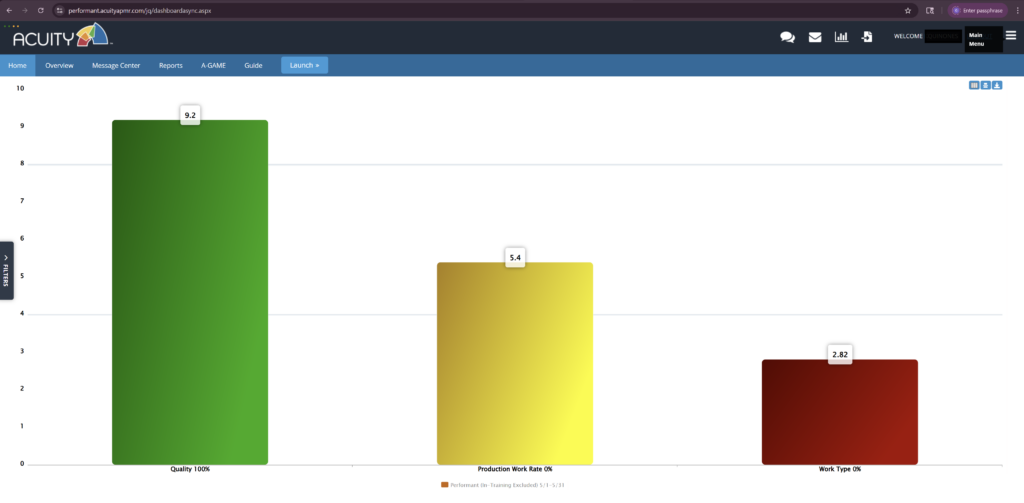
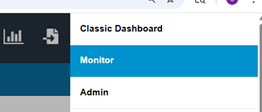
Once logged into Acuity, invoke the Admin menu by clicking the “hamburger” in the upper right corner (3 horizonal lines).
Click the Monitor option
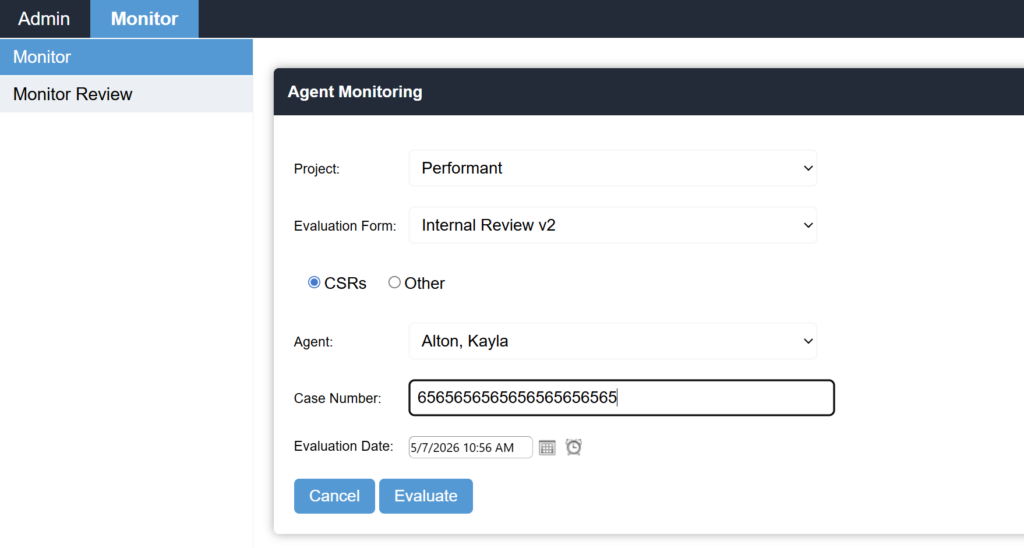
Enter the information. Work ID assignment is on the form.
Case Number: Remove any special characters, i.e., dashes.
Click Evaluate
In the top right of the form, enter the work ID, Type, and letter code values. Review and click Save.